Managing Template Categories
Written By Danny Schaffer
Note: Template Categories are managed by the company admin. You are not able to manage template categories as an agent.
Template Categories are a way to help agents immediately sort to certain template types on the Select a Template step. Good groupings may be around the type of content (newsletters, listing templates, etc) or around something central to the design (blue background, white refined design).
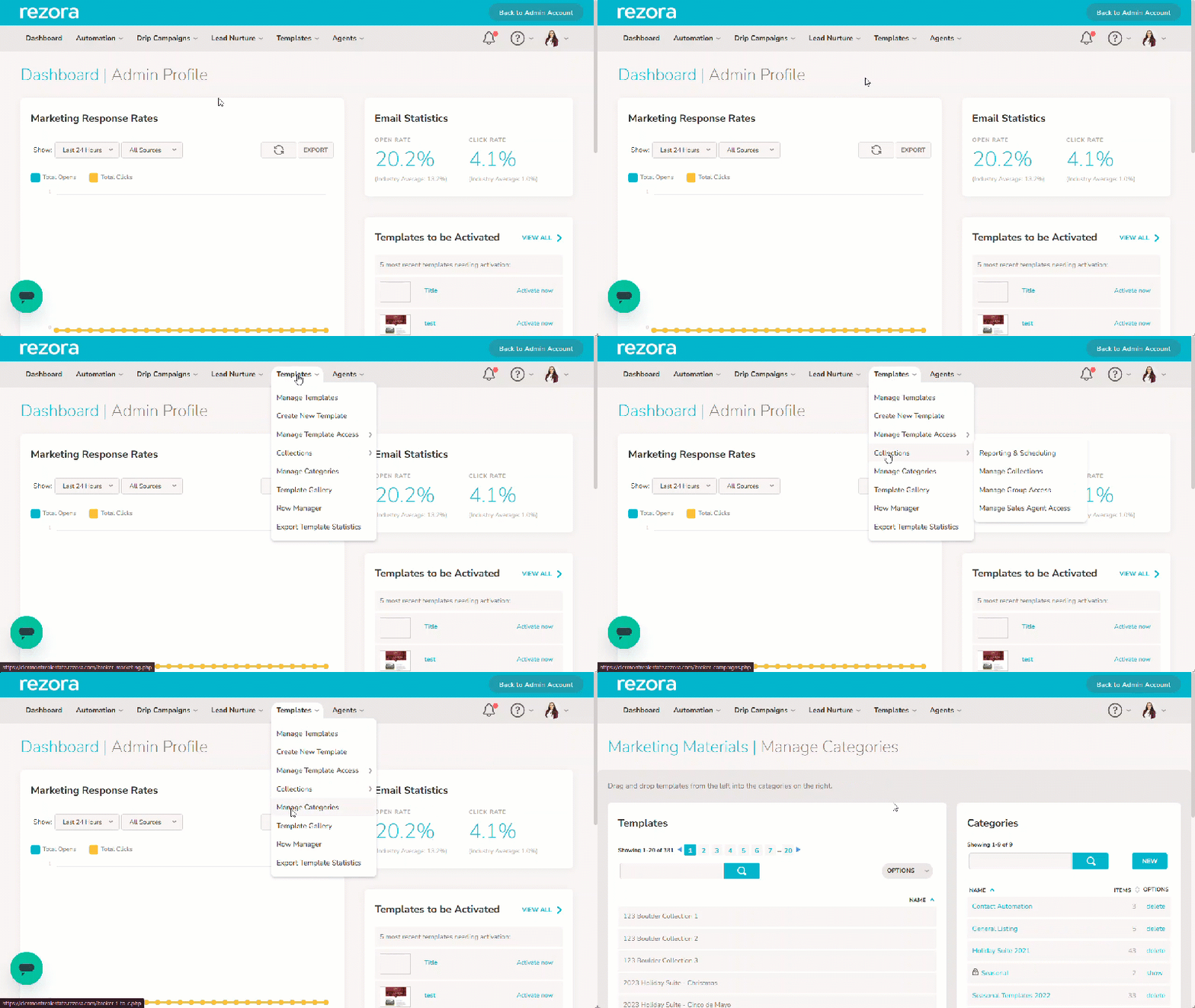
To manage Categories in your Company Admin account, hover over Templates and click Manage Categories. On this page, you will find active Templates on the left and Categories on the right.
Creating a New Category
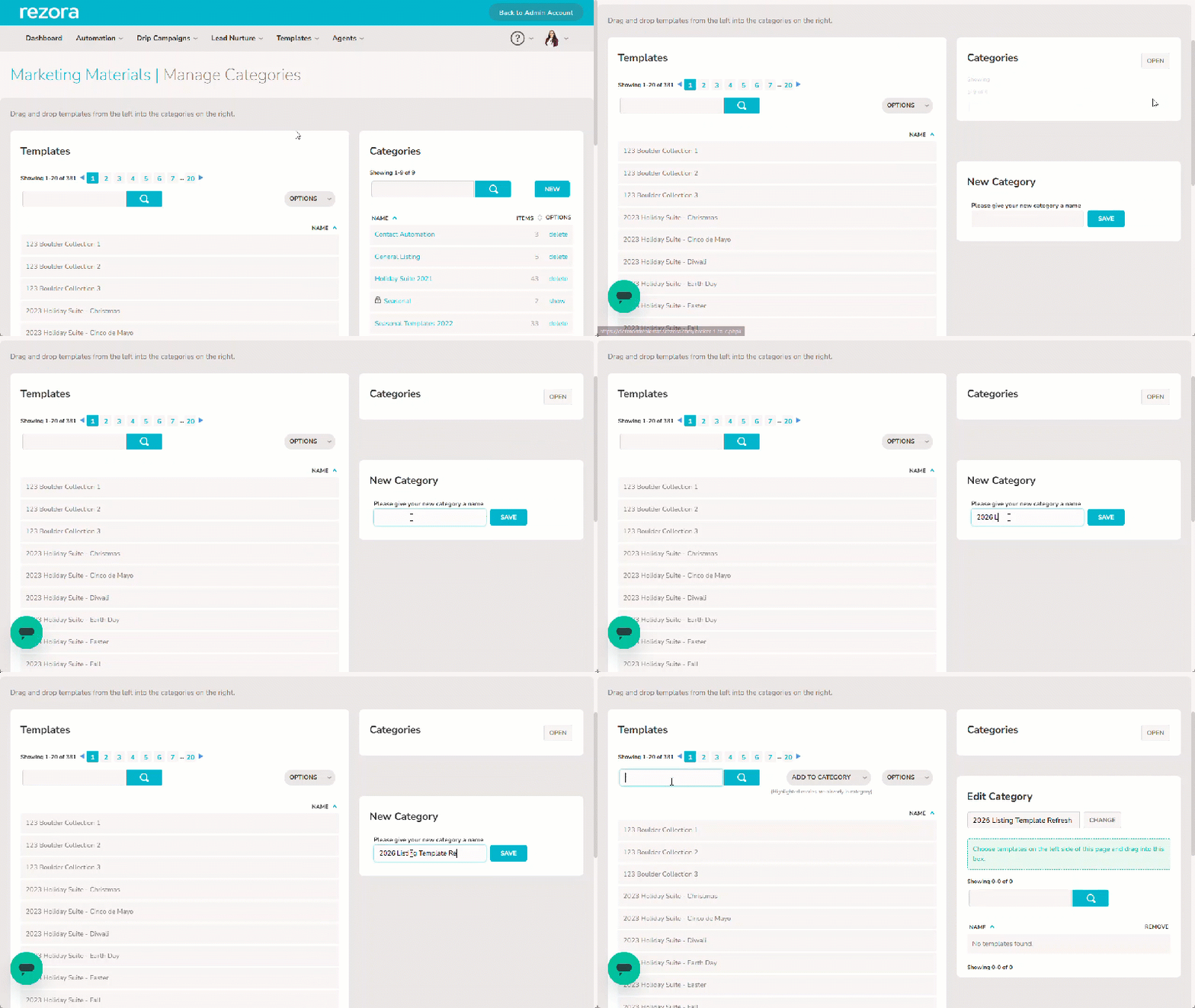
In the Categories area, click New. This opens the New Category box below. Give it a name and Save.
Adding Templates to a Category
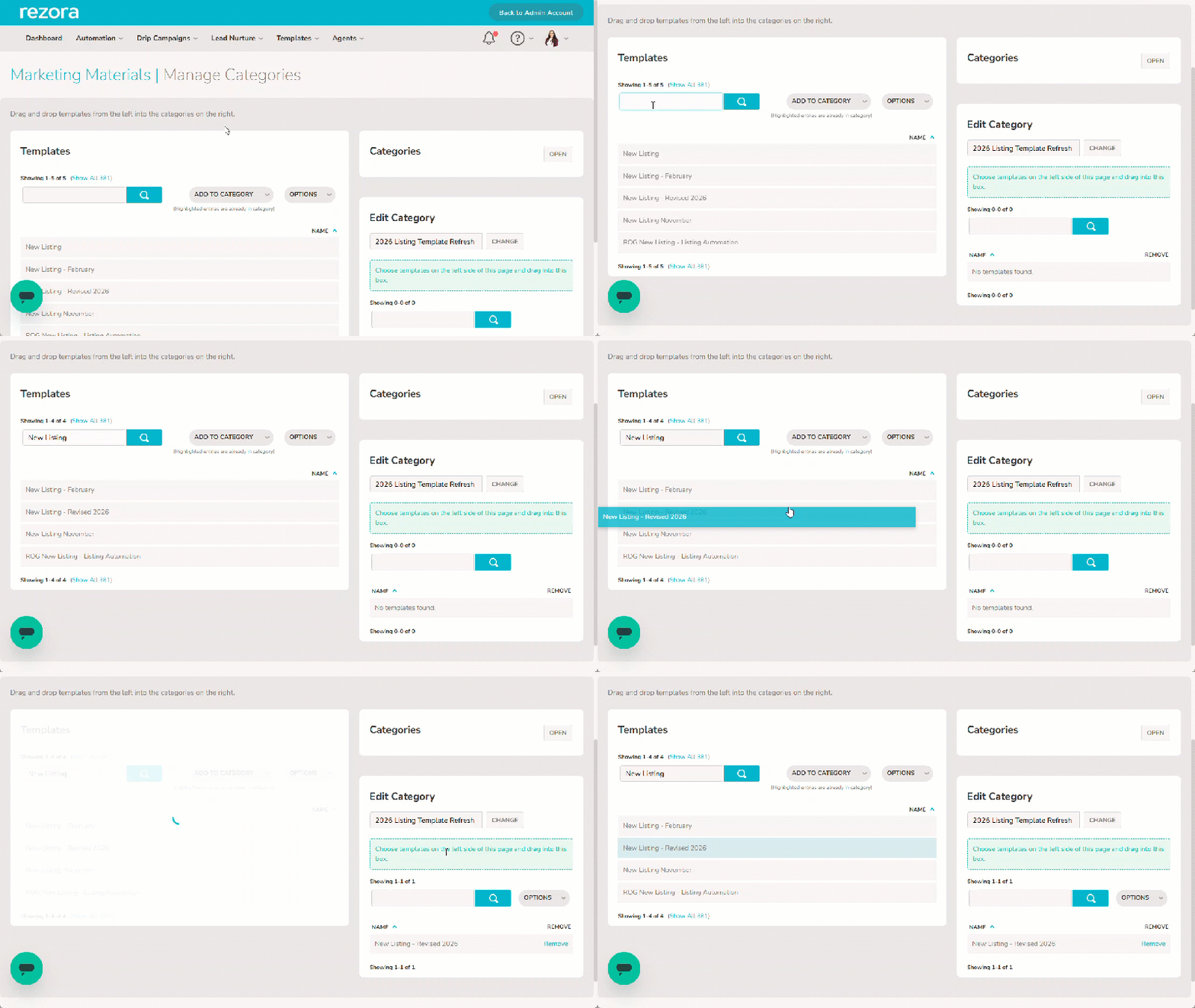
Locate your template in the Templates area to the left either manually or by searching the template title.
Click and drag the template name into the intended Category on the right. Repeat for other templates.
Changing a Category Name
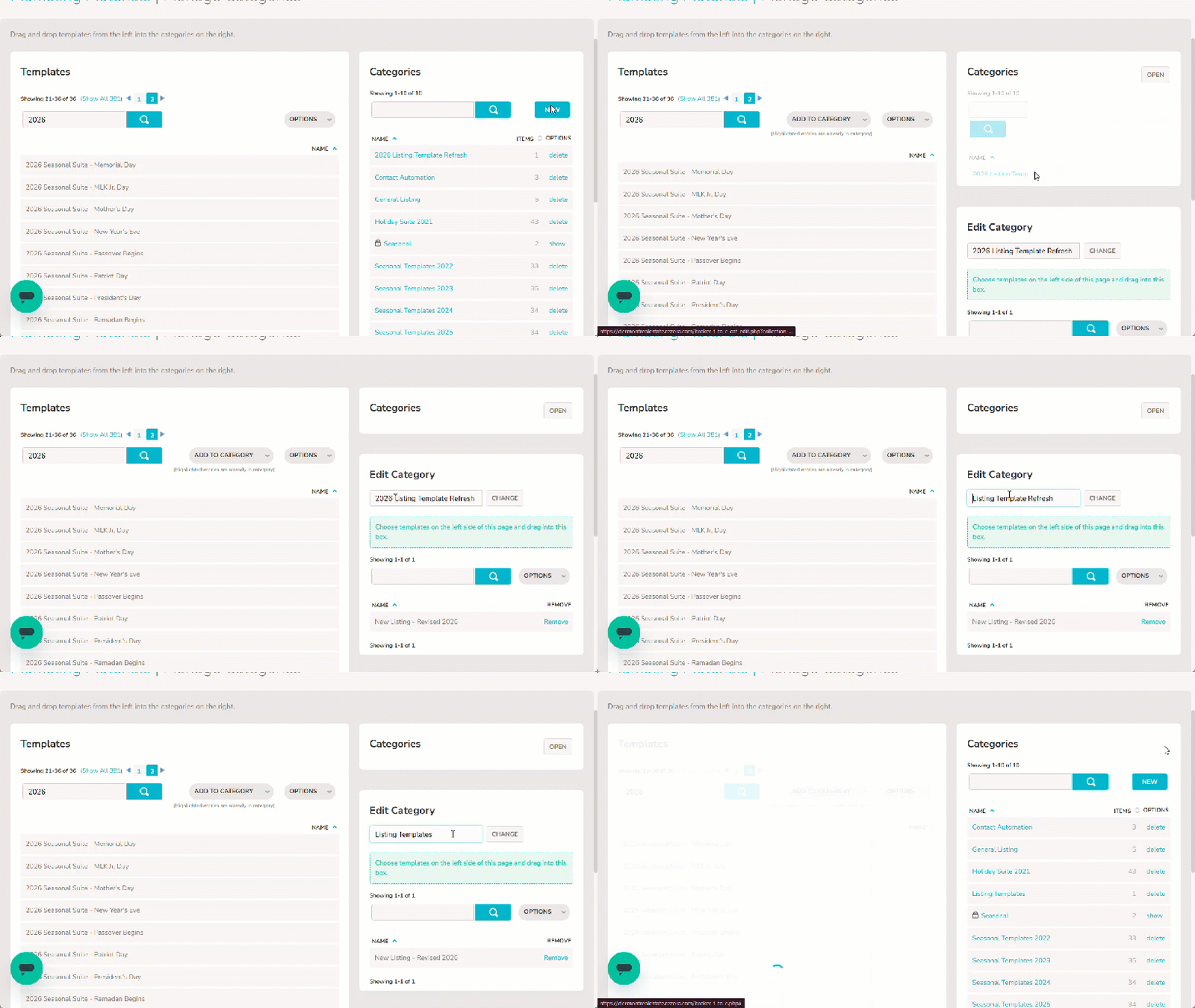
In the Categories area to the right (expand it with Open if you need to) click on the name of a Category you wish to change. In the Edit Category area below, change the name and click Change to save your change.
Deleting a Category
Note: Deleting a Category does not delete or archive the templates within it.
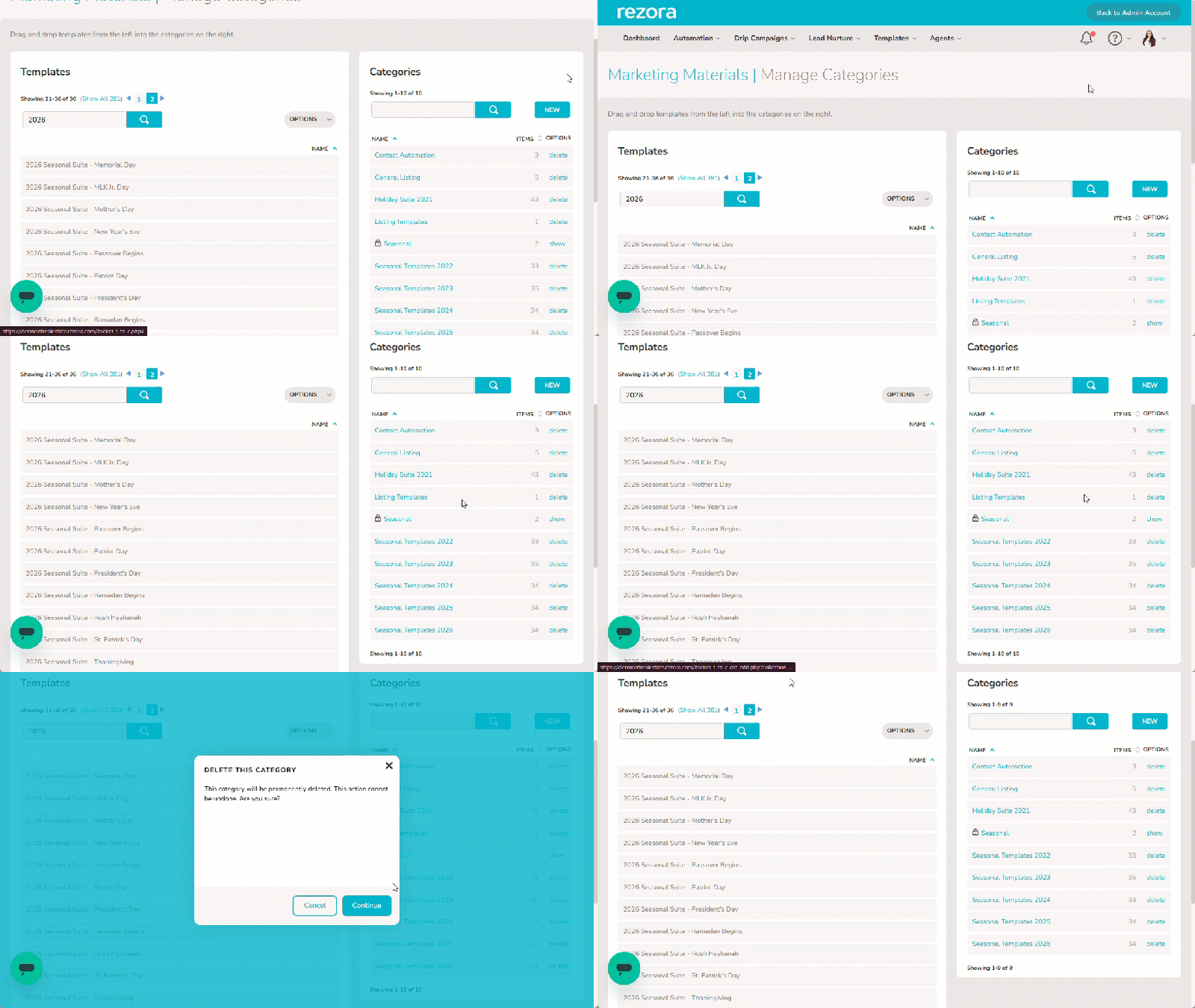
Head to the Categories area on the right (click “Open” if the menu is minimized). Locate the Category you wish to delete and click the Delete button. You will have to confirm the deletion in a modal as this action cannot be undone.