How to Add All Contacts to a List and/or Send to All Contacts
Written By Danny Schaffer
Adding All Contacts to a Distribution List
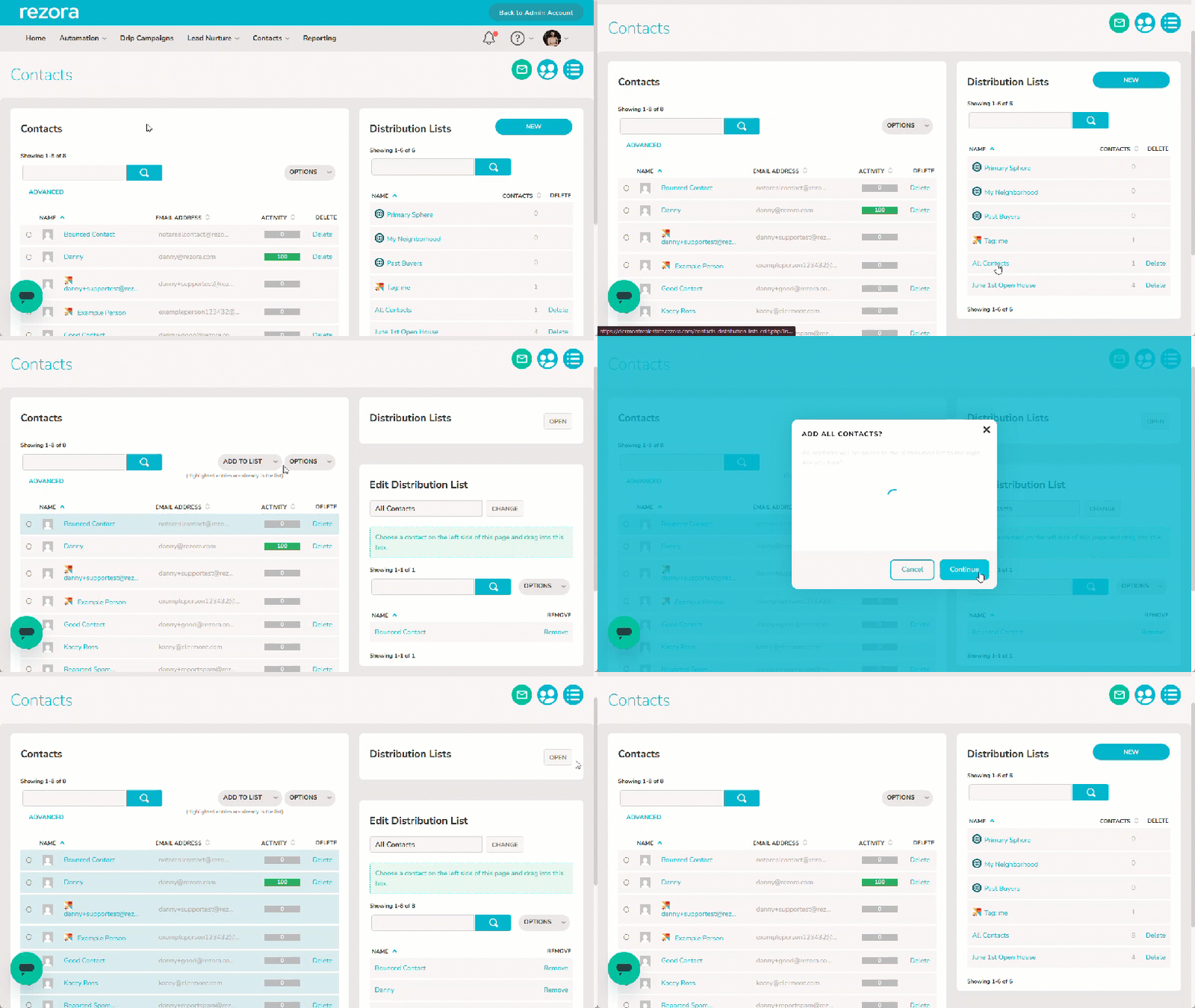
Head to the Contacts page. Click on the name of a Distribution List or Sphere to the right to open the “Edit Distribution List” area. This will also surface the “Add to List” button in the main Contacts area.
Click Add to List and then Add All XXXX Contacts with the Distribution List selected to the right, then go through the confirmation modal to add the contacts.
Please note, we cannot “undo” this process and restore a list to what it was before contacts were added.
Note: Contacts cannot be added to CRM originating distribution lists, Marketer Distribution Lists (MDLs), or Roster lists. Contact to list grouping for all of those groups must be managed elsewhere.
Selecting All Contacts as Recipients for an Email
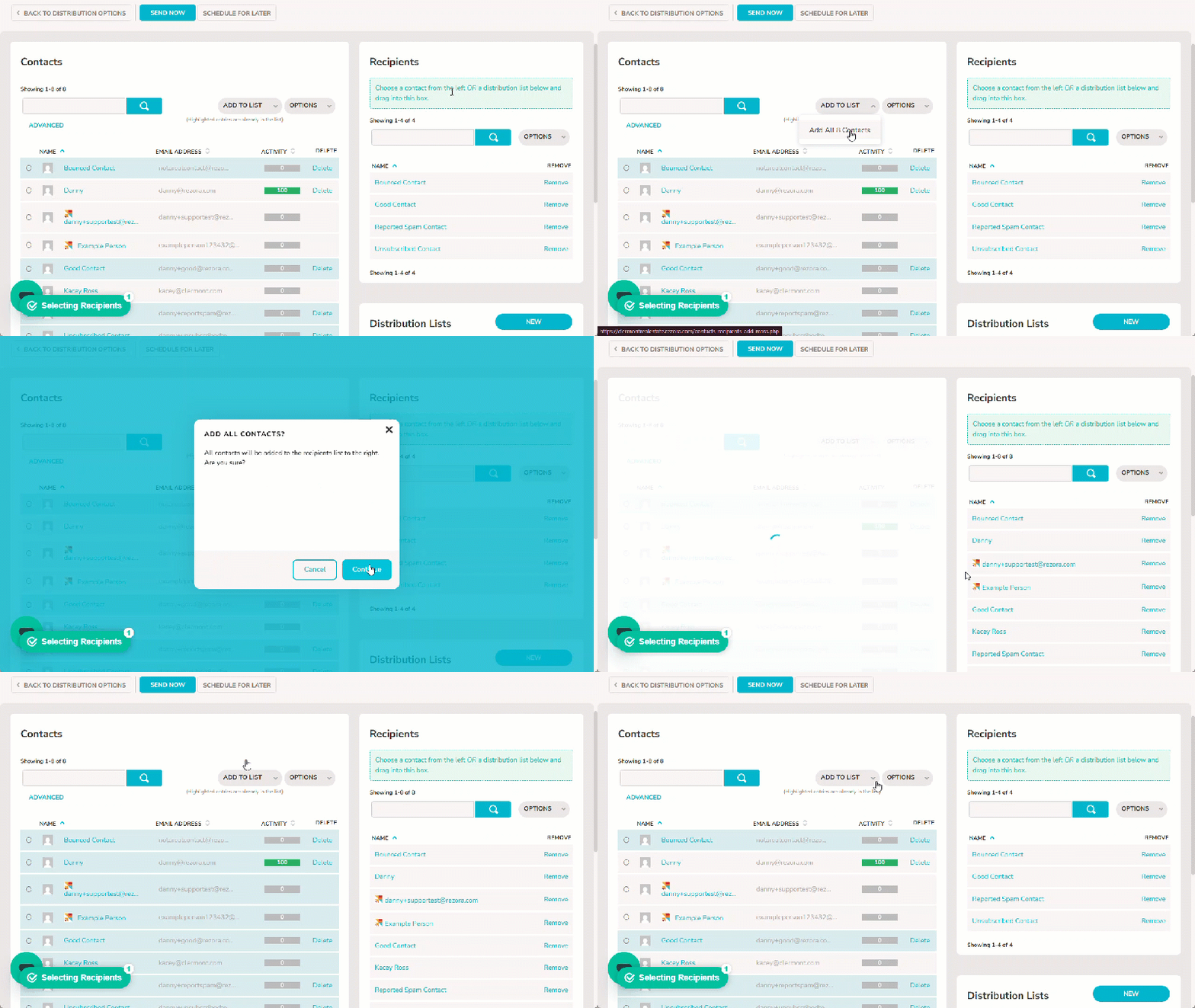
Head to the Select Email Recipients step of an email to select recipients.
To select all of your contacts, look for the Add to List button. Click it, then click Add all xxxx contacts to select all of your contacts as recipients.