How to link an image, text, or a button to download a PDF document
Written By Danny Schaffer
If you have a PDF file you wish to share with your recipients, give them an easy link to download that content. Below, you’ll find the steps to link a PDF document via a button, text, or an image.
Note: rezora cannot display a PDF directly in an email. To display content that is currently in PDF format, first convert it to a JPG or PNG image file, then insert it via an Image content block.
Linking a Button to Download a PDF
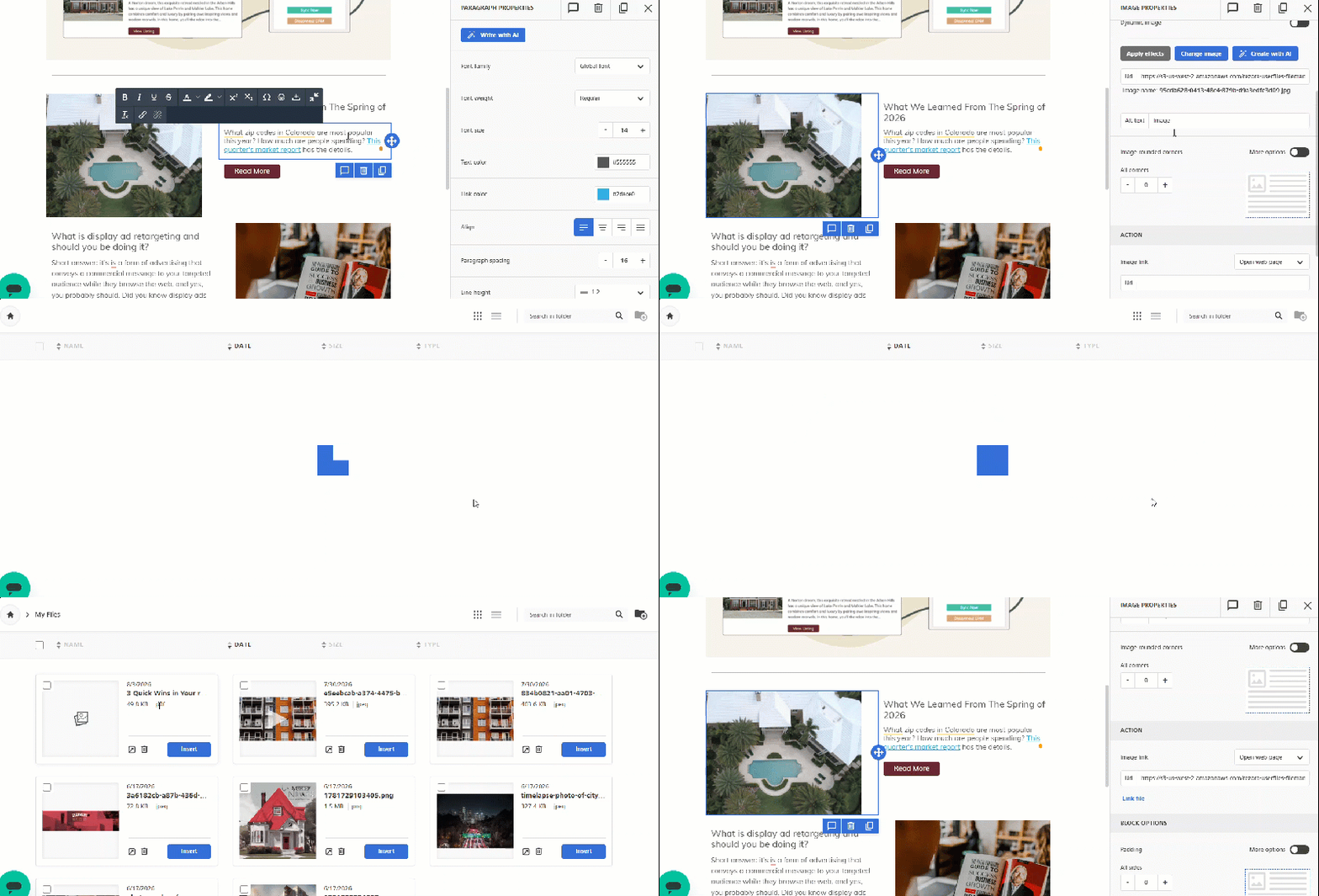
After building your button text and customizing the content, head to the “Action” area for the button. With the “open web page” setting selected, click Link File underneath the URL bar.
Head to your My Files folder, where you can upload your PDF document directly using the Upload button. Once uploaded, click Insert next to your PDF file to link it for download whenever a recipient clicks the button.
Linking Text to Download a PDF
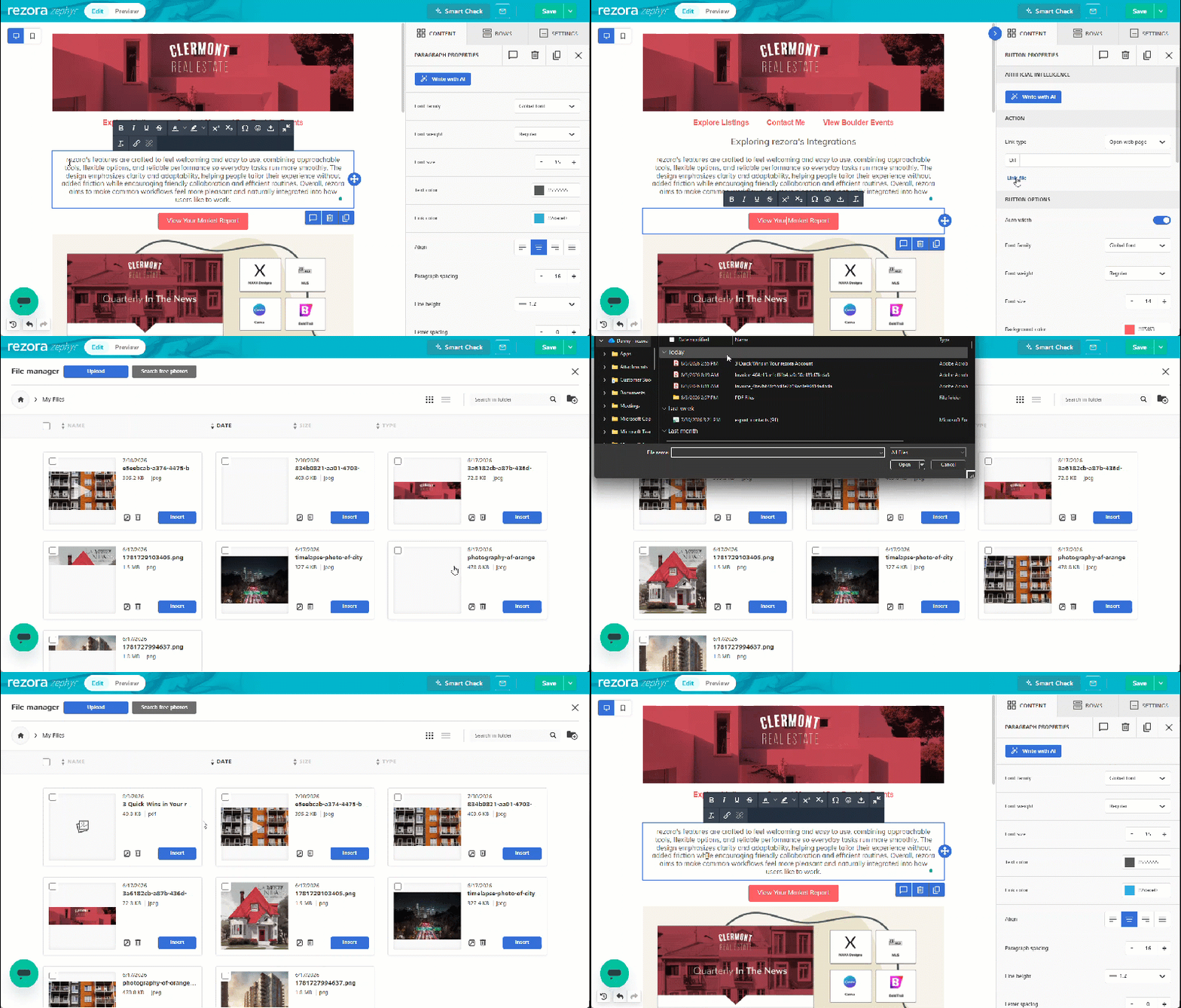
In your Paragraph, Heading, or List block of choice, highlight the text you’d like to highlight. Click the Link button in the WYSIWYG menu.
In the Insert Link menu, change Link Type from URL to “File Manager”. Navigate to the My Files folder, import, and then Insert your PDF file. Click OK in the Insert Link menu to finalize the linking of the text.
Linking an Image to Download a PDF
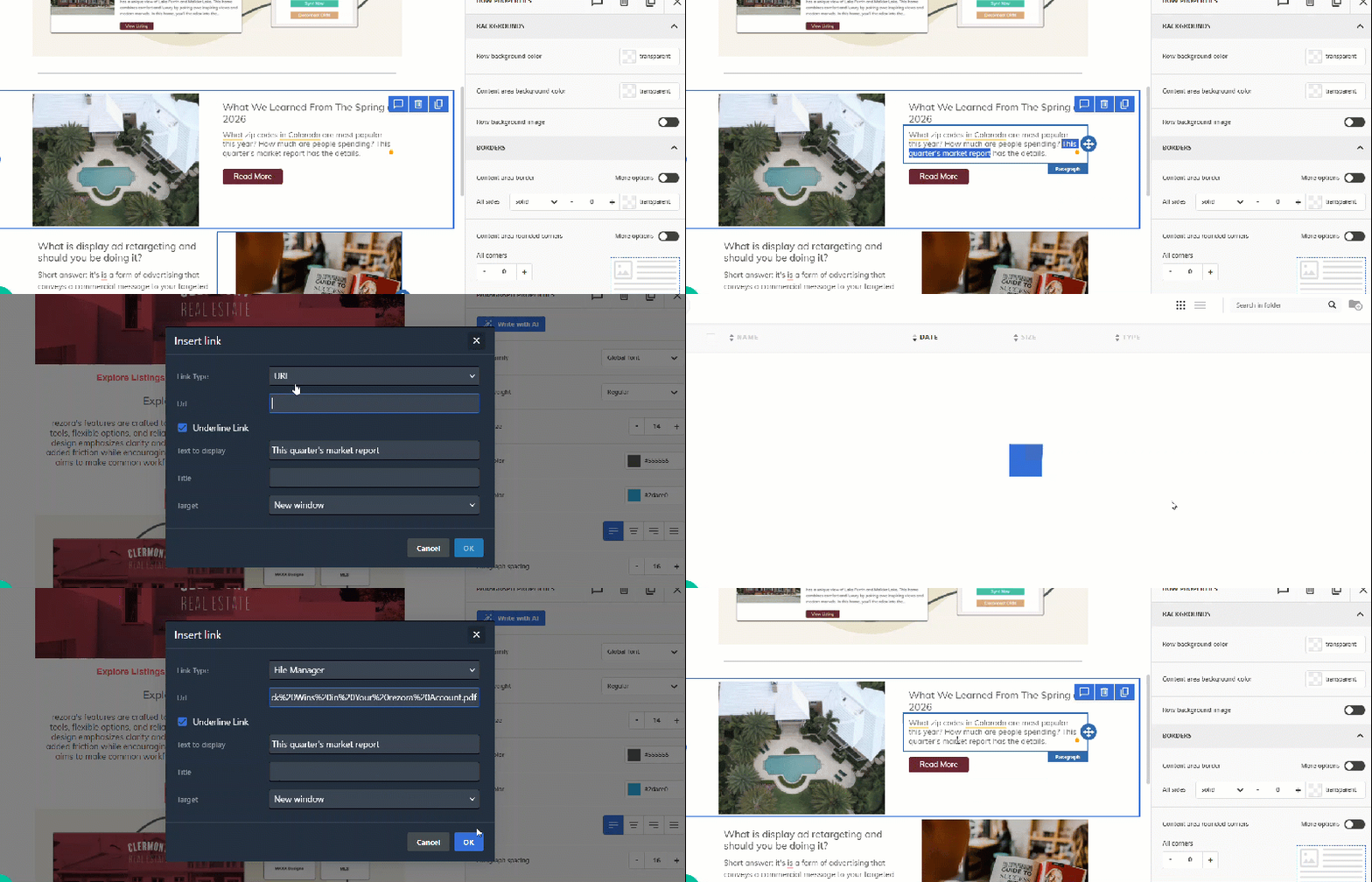
After adding your image, head to the “Action” area for the Image. With the “open web page” setting selected, click Link File underneath the URL bar.
Head to your My Files folder, where you can upload your PDF document directly using the Upload button. Once uploaded, click Insert next to your PDF file to link it for download whenever a recipient clicks the button.