How do I select a different image from my listing?
Using the "Change Image" button to select a different image from the listing in the My Listings folder.
Written By Danny Schaffer
In the email editor:
Click on the listing image you would like to swap out.
In the "Content Properties" area, click the Change Image button.
In the file manager, click My Listings > Select the Listing Type > Click the Listing Address)
Find the desired image and click Insert
Presto! The image you selected will replace the previous image in the marketing piece.

Did you know you can import and insert your own images into listing image areas?
Click on the listing image you would like to replace.
In the "Content Properties" area, click the Change Image button
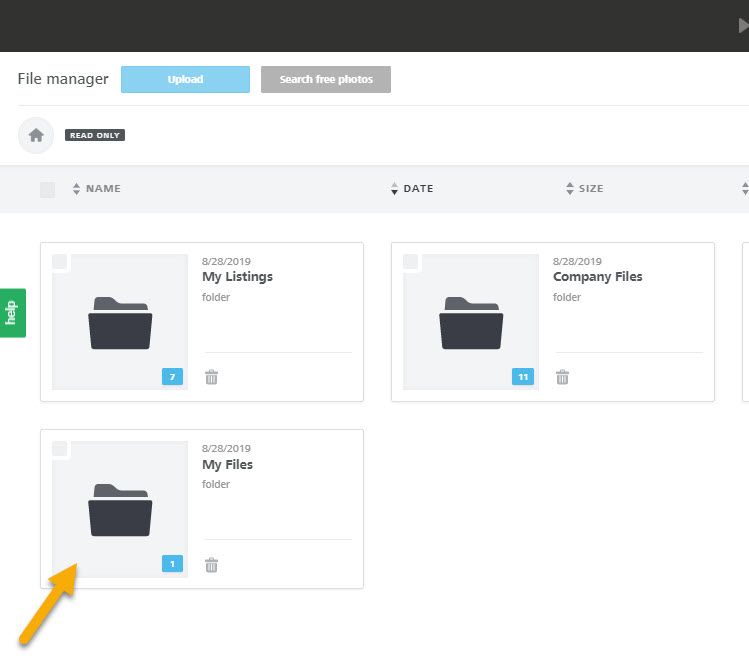
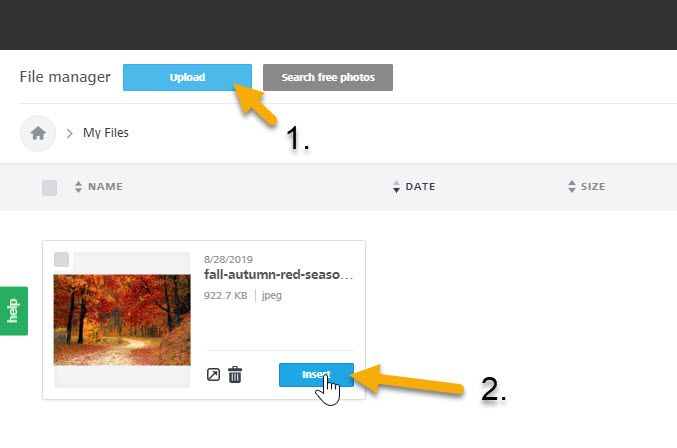
In the File Manager, click My Files.
Upload, then Insert your own image.