How do I add a listing row to my piece?
Add information about a listing to an email using an available Listing Dynamic Row.
Written By Danny Schaffer
In the email editor:
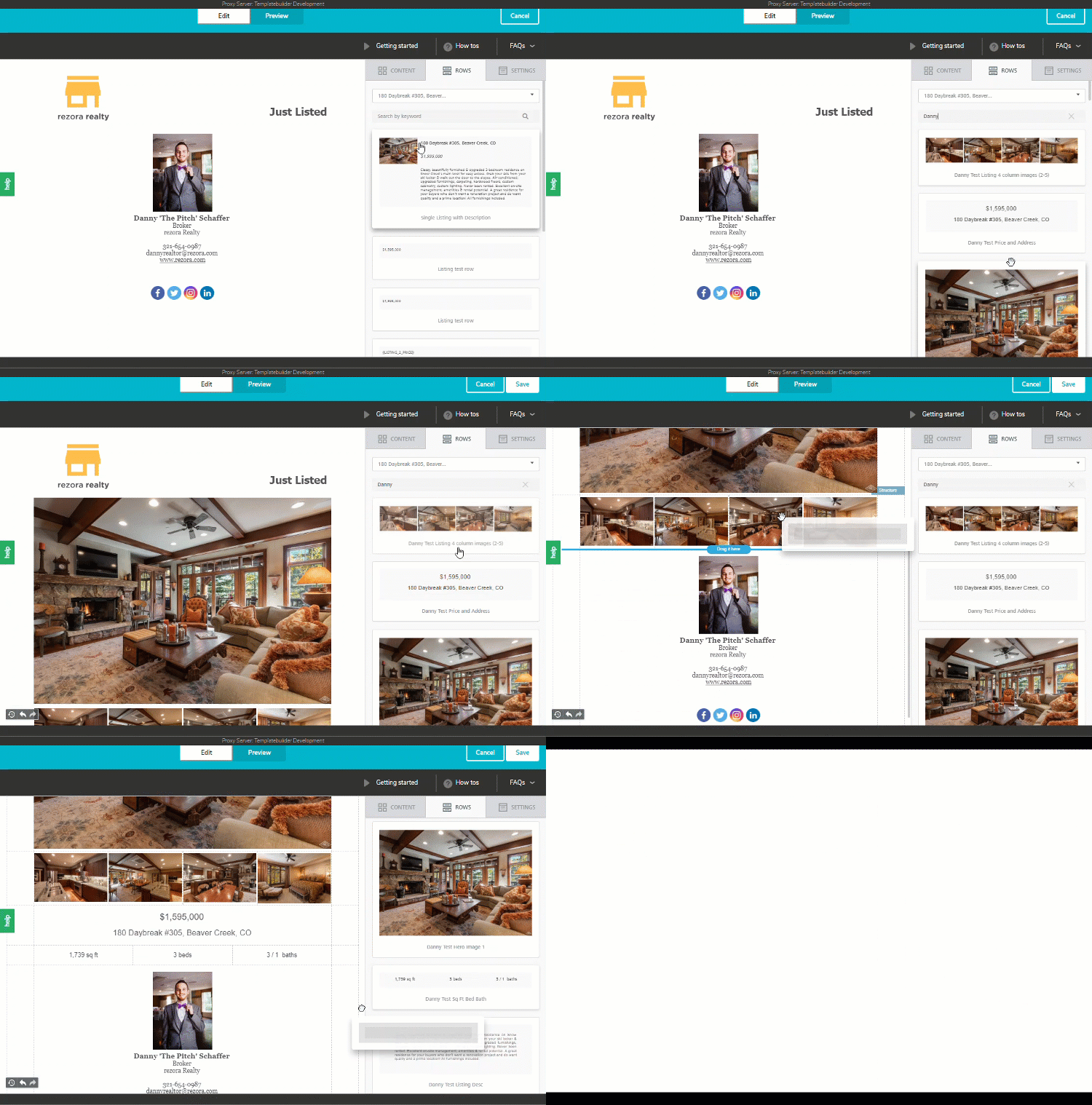
Click on the ROWS tab.
Click on the drop-down menu and select Dynamic Content.
In the "Content Type" pop-up menu, click Listings to pull up the "Select Listings" pop-up menu.
Find your listing in the available listings or search the MLS ID in the Search bar, then click Choose next to the desired listing.
Click Apply. This will generate rows populated with the listing's information. The rows that appear may depend on what your company or brand has made available.
Simply select a row, then drag and drop it into place!
Note: Access MLS data requires a company level requires a company level MLS integration.

Did you know you can choose from and even insert multiple generated listing rows?
After clicking Apply, you can browse the rows that were generated or search for a row name or keyword to narrow the list. You can then use these different row options to put together an eye-catching marketing piece with as much or as little of the listing information you'd like!