How do I add a play button to my image?
Use the "Triangle" Shape in the image editor to add a play button style overlay to an image.
Written By Danny Schaffer
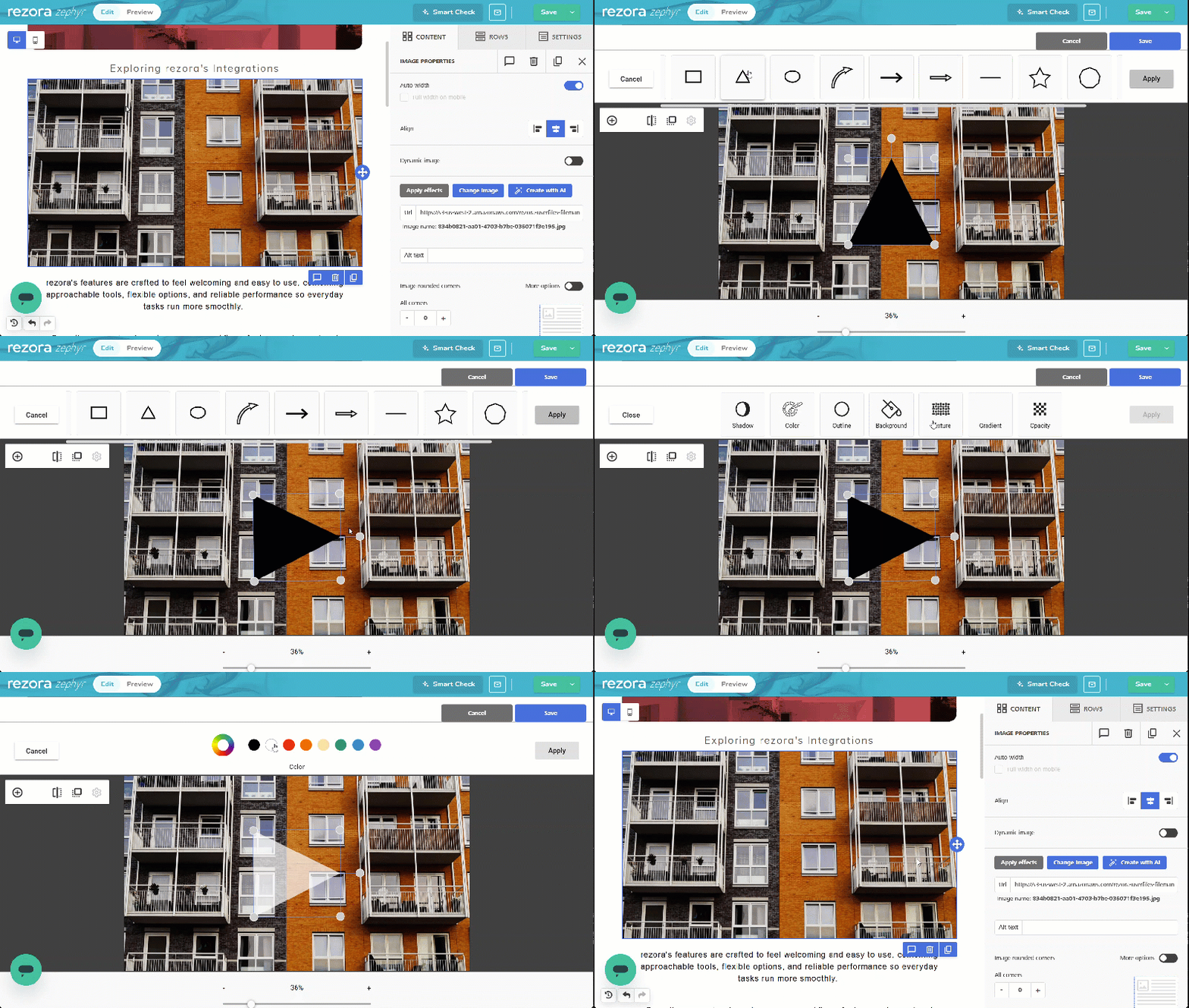
Click on the Image area that you want to link. This will open a Content Properties area on the right.
Click Apply effects on the right.
Click the Shapes content option, then click to add a triangle.
Rotate the triangle to resemble a play button. Click Apply.
Tip: Use the Settings (cog) button to adjust the Color and Opacity of the "play button" if desired. Apply any changes.
Click Save after applying your changes.
Don’t forget to link your new image to a web page.
In the email/template:
Click on the Image area that you want to link. This will open the Image Properties area on the right.
Scroll down to the Action section.
Paste the desired link in the URL field.