Using your Company Admin account to connect to an MLS data feed
How to sign up for an MLS feed integration in your company admin account.
Written By Danny Schaffer
In a company admin account, you can sign up for an optional MLS data feed connection. Requesting an MLS connection is a process that has some extra steps, but our goal is to simplify it for you.
Note: This option is not available for individual agents.
In your Company Admin account (specifically the Admin profile):
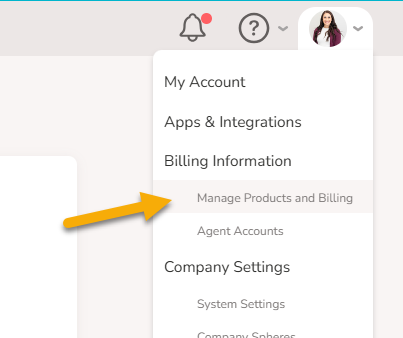
Hover over your profile picture to open the drop-down menu.
Click Manage Products and Billing.
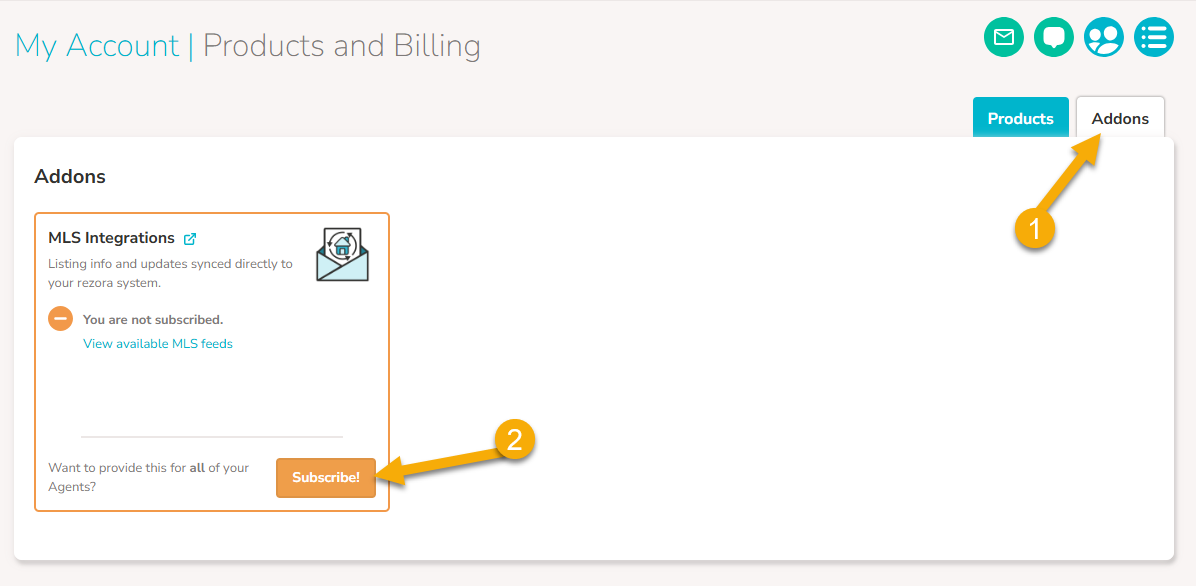
On the Manage Products & Billing page, click on the "Addons" tab
Find MLS Integrations and click Subscribe!
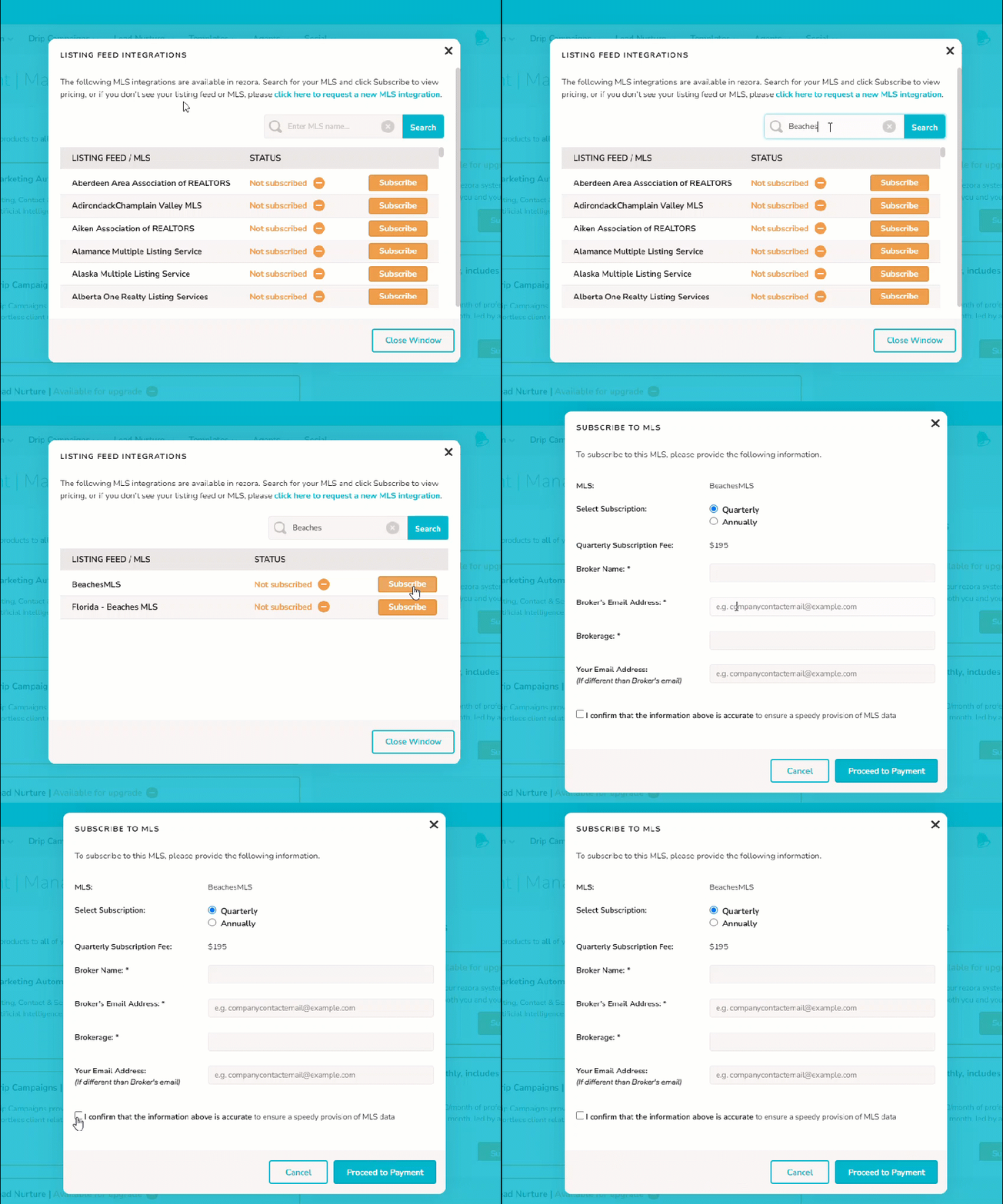
Search for your MLS feed and click Subscribe to enter the Subscribe to MLS menu.
Select the preferred subscription payment period (quarterly or annual) and enter some information so we can get the process rolling.
We'll need your broker's name, email address, brokerage name, and your email address (if it is different than the broker's).
Confirm and click Proceed to Payment.
Enter the payment for the MLS connection to officially launch the application process.
After this, we'll work with our MLS data partners to get the needed agreements, hard copy or digital, to the broker for authorization, then submit them to the MLS. When the MLS has approved the connection, we'll start pulling in the data and make it available to your system as soon as it is ready.