How do I preview an email included in a Drip Campaign?
Head into the Drip Campaign, click View, and Preview the emails before you start to add contacts.
Written By Danny Schaffer
Reviewing the emails that will be sent to your contacts as they Journey through a Drip Campaign is always a great idea!
To preview the emails themselves:
Hover over Drip Campaigns in the Navigation Bar
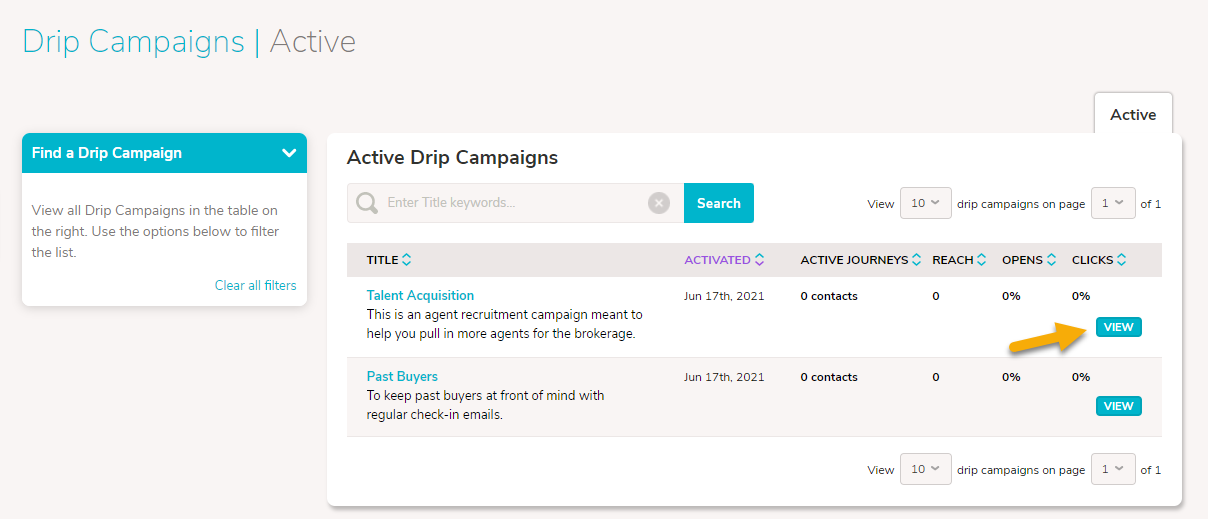
Click the View button next to the Drip Campaign in question.
While viewing the Drip Campaign, look for the Green Email steps.
To preview the email, click on the Email step, then click the Preview Email button in the details column to the right.