Choosing a Template
How to find the right template for a marketing piece using search, editability, dynamic tag slots, and category filters.
Written By Danny Schaffer
Finding the right template
After clicking "Create New Marketing Piece” under Lead Nurture or clicking the green “Send an Email Now” button, you'll be taken to the Select a Template step. Here, there are several tools to help you find the template you need.
Search
At the top of the "Available Templates" portion of the page, you'll find the first tool, the Search bar. You can search keywords or portions of a template title in order to locate a specific template with ease. Searching terms like "holiday" or "listing" can help you find the exact template you may need.
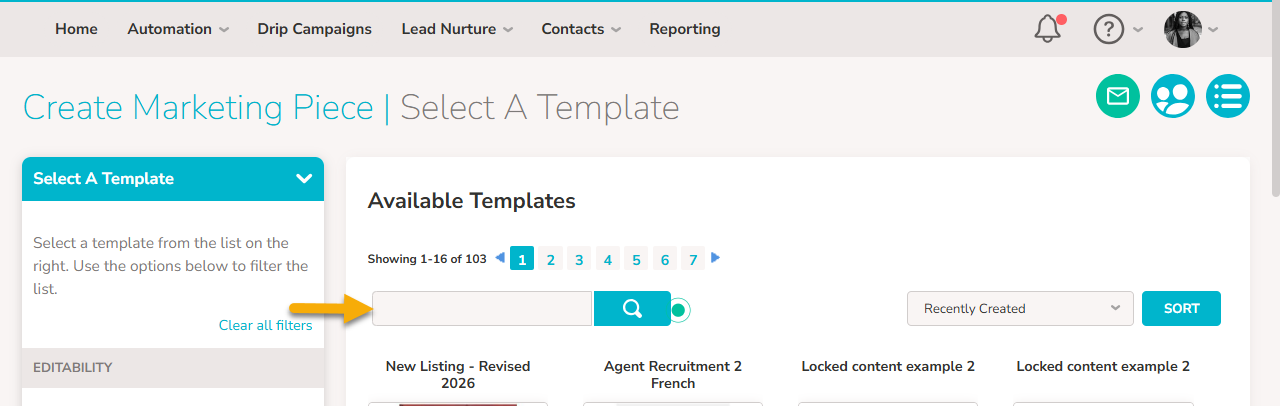
If you're not sure of the title of a template, you can use the Filters on the left side of the page to try to find a template based on what it can do.
Editability
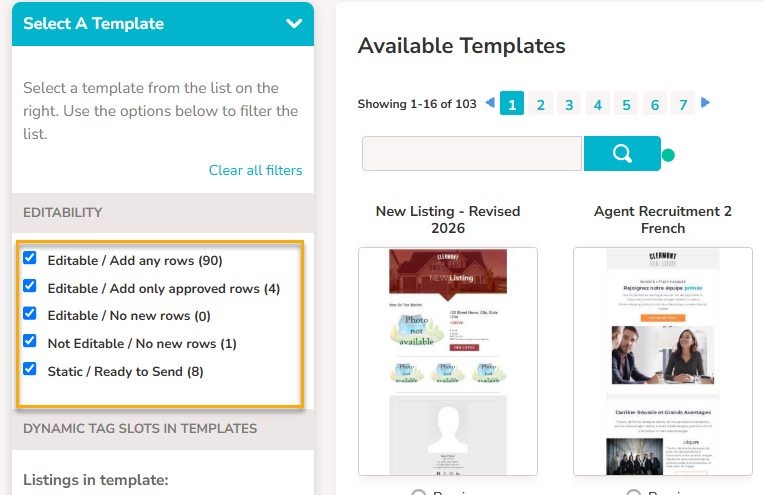
Use the Editability filter to select exactly how customizable you need the piece to be. The checkboxes are arranged from most editable at the top to least editable at the bottom. If you're looking for the most flexible templates possible, eliminate the bottom options so you have a little more wiggle room.
Dynamic Tag Slots in Templates
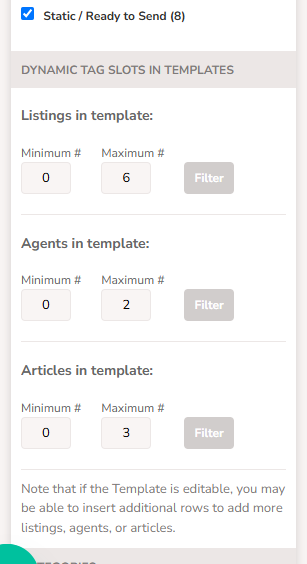
The Dynamic Tag Slots in Template filters allow you to find a template with the exact content that you need. Dynamic Tags are items that your marketing team builds into a template that pull in information from an outside source (like an MLS listing or your My Profile page). If you need to create a piece for one listing, set your Minimum # to 1 and your Maximum # to 1. This will show you the templates that have exactly one listing slot.
Categories and Collections
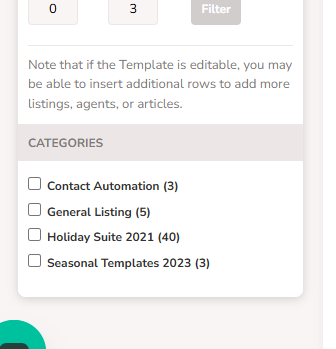
Categories and Collections are groupings of templates that are created and managed by your company admin. Collections must specifically be opted into on the Lead Nurture > Collections page to display here. Usually, these groupings are based around a theme, like the use or design of the templates.