Using Gmail Filters to find/surface rezora Verification Code emails
How to set up a Gmail filter so rezora verification code emails always reach your inbox
Written By Danny Schaffer
If you use Gmail as your email client, you can put a Filter in place to establish a standard for how that account should treat your verification code emails.
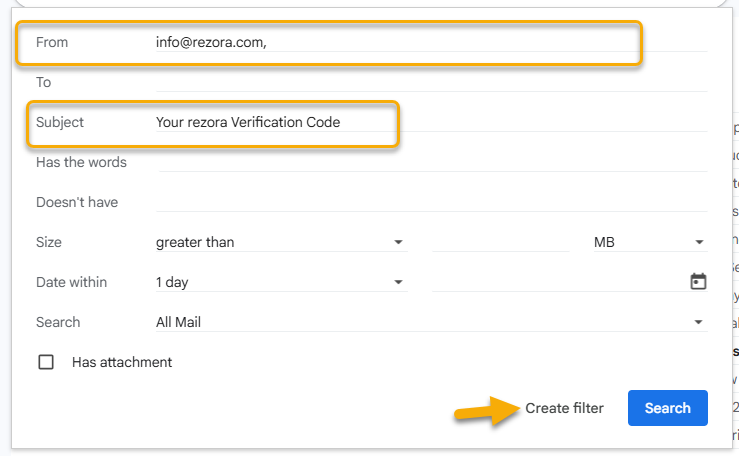
In your Gmail account, click the "Filter" button shown below in the Search field.

Set the From address as "info@rezora.com" and the Subject as "Your rezora Verification Code"
Click the Create Filter button at the bottom.
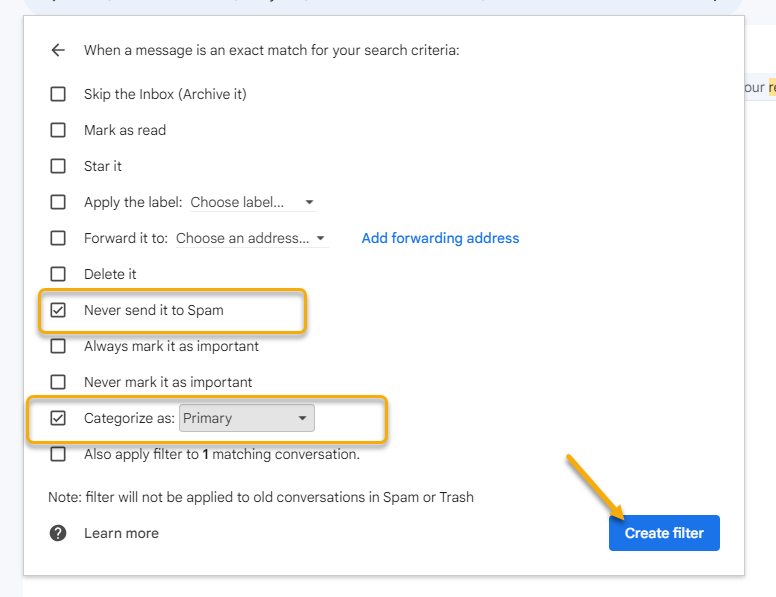
Make sure to click the Never send it to spam checkbox.
Check the Categorize as checkbox
Set the drop-down menu to "Primary"
Click the “Create Filter” button
You now have a Filter in place to automatically send the "rezora Verification Emails" to your inbox every time!
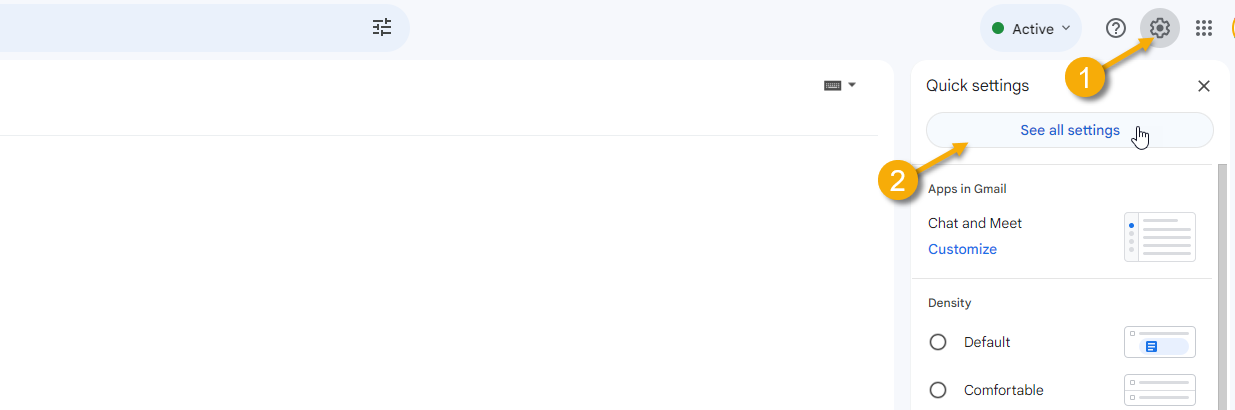
Note: You can click "Settings" > "See all settings", and then navigate to the "Filters and Blocked Addresses" tab to review, edit, or delete your Filters at any time.