How do I sign in to rezora?
Steps to sign in to rezora using a one-time password sent by email, text, or generated in an authenticator app.
Written By Danny Schaffer
rezora uses One Time Passwords (OTPs) instead of a username and set password for the account sign-in process. The One Time Password setup provides an extra layer of security for your account as it removes the possibility of having a weak or common password.
Note: If your organization uses Single Sign-On (SSO) to access rezora through an internal or intranet system, your sign-in steps have not changed — this OTP process does not apply to SSO users.
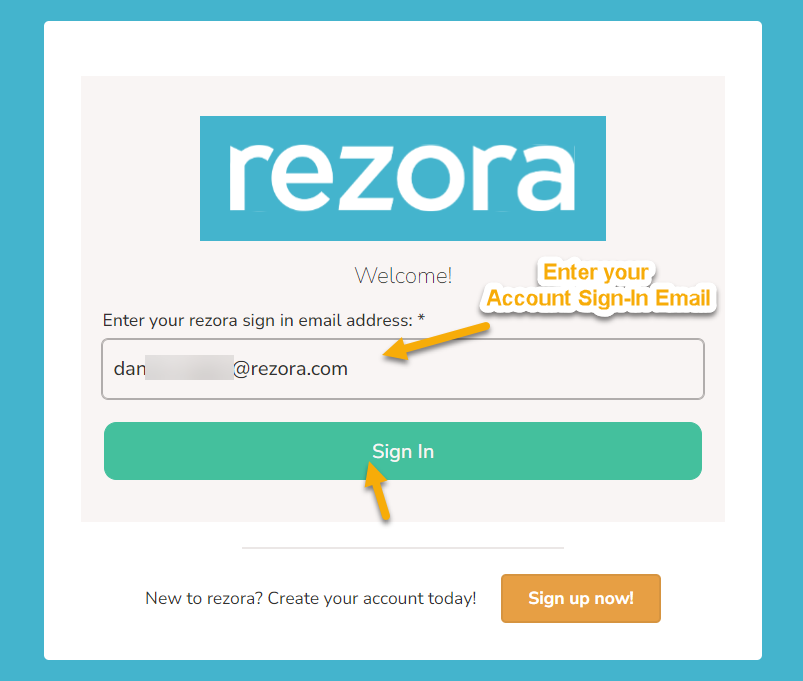
To sign in, head to the Universal Sign-in Page at https://app.rezora.com/usignin.php.
Enter the email address set as the Account Sign-in Email for your account in the Email address field then click 'Sign In'.
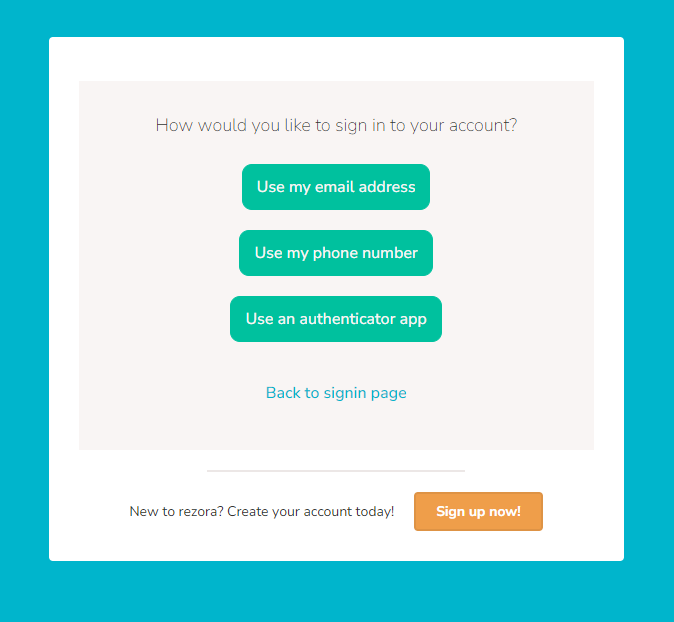
On the sign-in screen, you'll see three ways to receive your one-time code: Use my email address, Use my phone number, or Use an authenticator app
Use my email address is the default option. If you have not set up phone or authenticator sign-in, click “use my email address”.
If you click a method you do not currently have set up, you'll receive the following message:

If you see that message, try a different option.
Use my email address:
Click the Use my email address option, and you'll be taken to this screen:
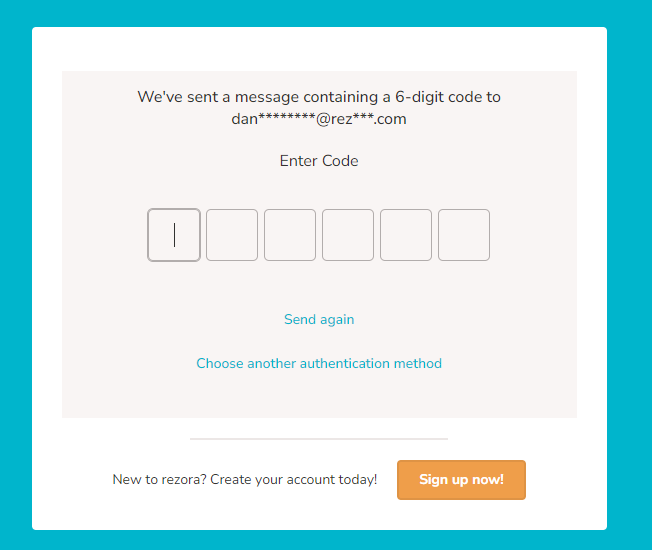
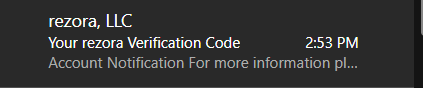
Keep this Sign In tab open, head to your email inbox, and look for an email titled "rezora Verification Code" from info@rezora.com. This email will contain the code you need to sign in. This code is only valid for 3 minutes. Only the most recently sent code can be used to sign in.
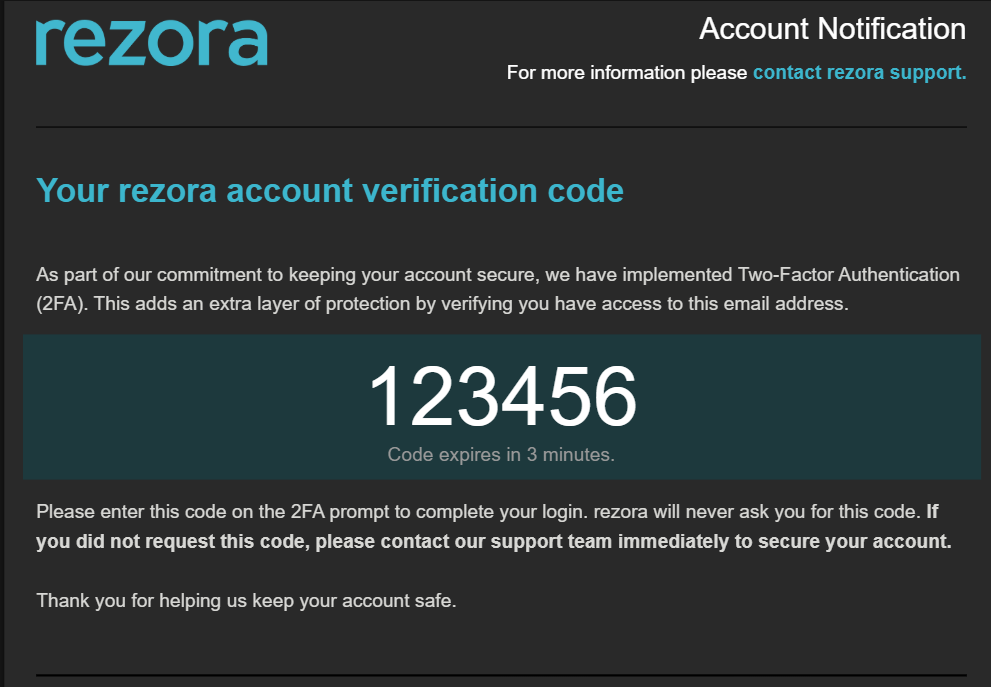
Head back to the "Sign In" page you had opened previously and manually type in the code. Give it a moment, and you’ll be signed in if the code is correct.
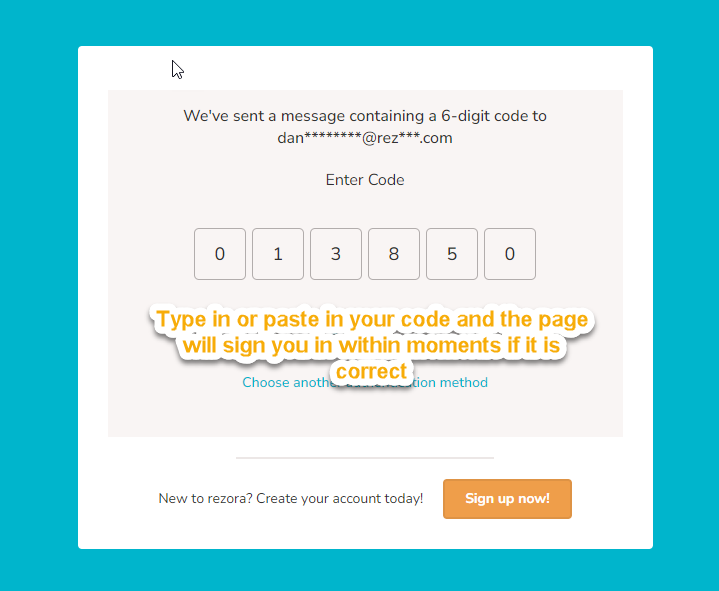
This process will occur every time you go to sign in to rezora.
Having trouble spotting the verification code email? Check out this article.
Use my phone number:
Click the Use my phone number option and you'll be taken to this page here:
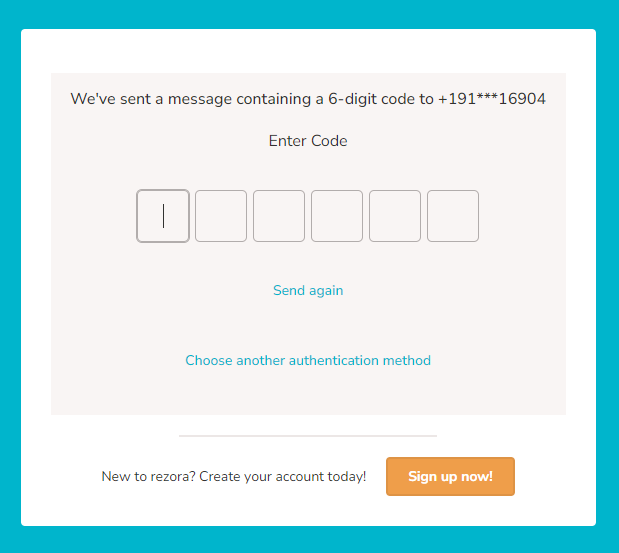
Keep that page open and check the phone in question for a Verification Code text message as shown below. This code is only valid for 3 minutes. Only the most recently sent code can be used to sign in.
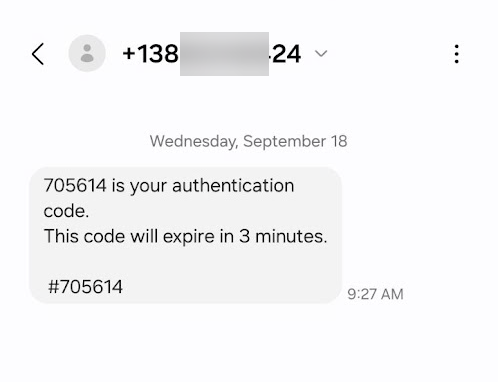
Head to the already open rezora sign-in page and type in your code:
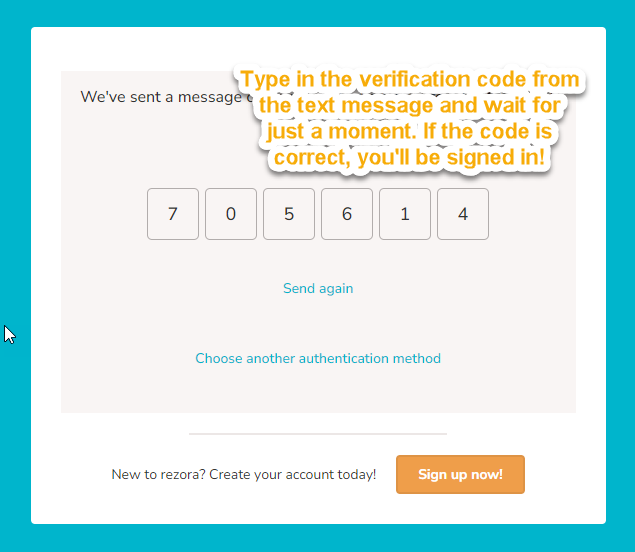
You'll be signed in! If you have entered an incorrect code, you can either click Send again to receive a new code or choose another authentication method if you have the other options set up.
Use an authenticator app:
Click the “Use an authenticator app” option, and you'll be taken to this page here:
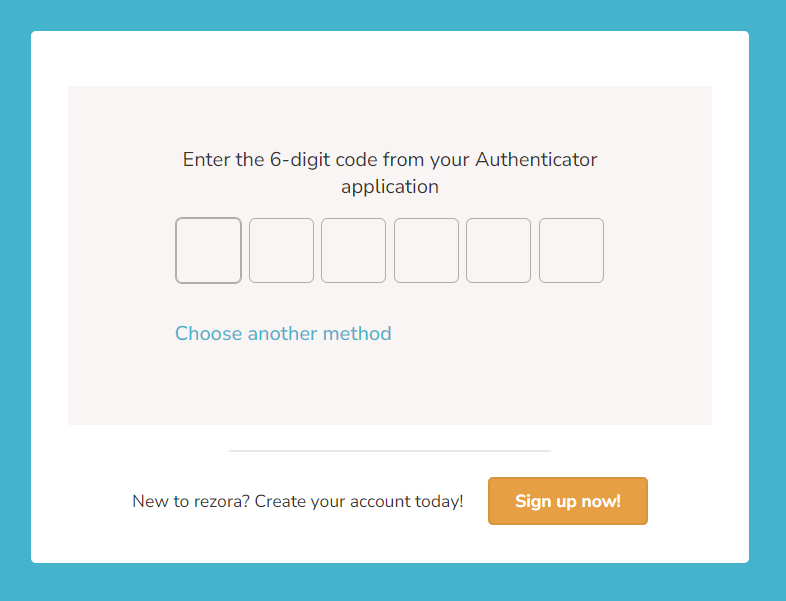
Keep that page open, pull out your device, and sign into your authenticator app. Find the appropriate Account in your authenticator and get the temporary code. Pay attention to the countdown/refresh for the generated code, as these authenticator codes are very temporary.
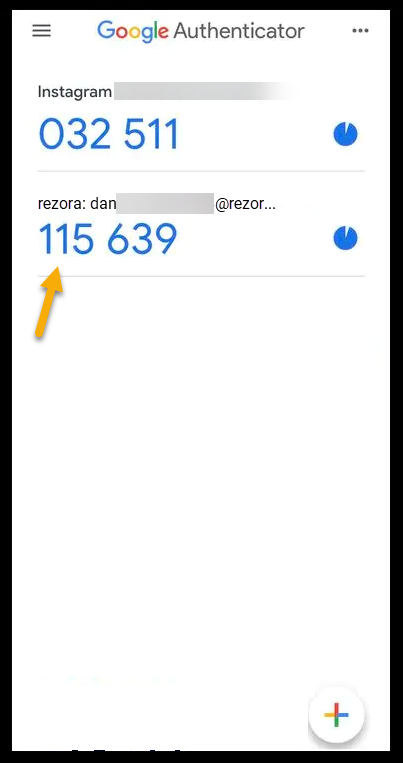
Head to the already open rezora sign-in page and enter your Authenticator code:
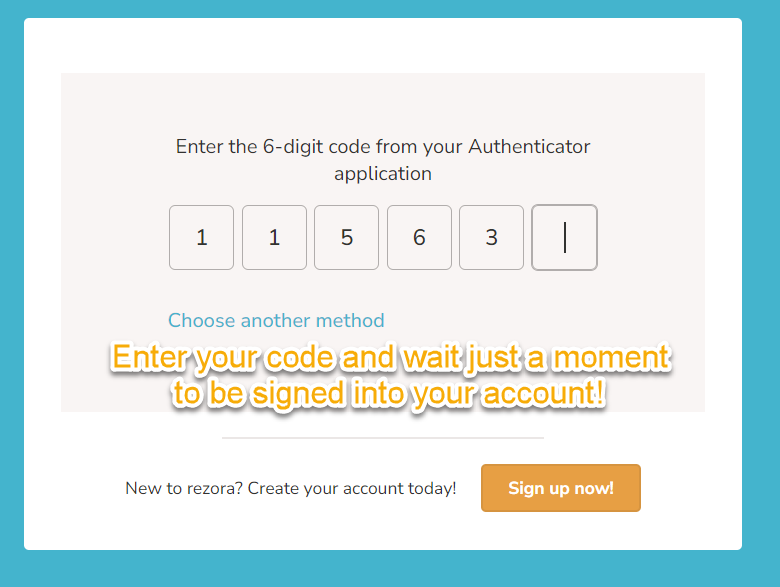
If you enter an incorrect code, you'll receive an error message letting you know. Simply re-enter the code or wait for the next code refresh in your authenticator app and enter that one!
Related questions
How do I update my sign in email address? Head to your My Account page and Change your sign in options
Do I need a password? No - rezora uses one-time codes instead of a password, so there's nothing to reset.
I didn't receive a code. Check spam/junk folders for email, confirm phone signal, or try a different sign-in method. If none work, contact your admin or rezora support.
My registered email/phone number is out of date. Use an alternative method to sign in. If you need additional assistance, reach out to support@rezora.com
My organization uses SSO. This OTP process doesn't apply to you. Sign in through your usual internal/intranet link.