How do I schedule a marketing piece?
How to schedule a marketing piece to send at a future date and time, and how to edit or cancel it afterward.
Written By Danny Schaffer
Agents are able to schedule a marketing piece to go out in the future. These are separate from company-scheduled marketing pieces. While company-scheduled pieces go strictly to your Primary Sphere, your scheduled send can be sent to any contacts and distribution lists you would like.
On the Distribute step of creating a marketing piece, click Select Email Recipients.
Drag over any contacts and/or distribution lists to the Recipients section as you normally would. There must be at least one recipient to schedule the email.
Click Schedule for Later near the top, to the right of the Send Now button.

Choose the date and time for the email to be sent. Click in the date field, and a calendar will pop up for you to select a date. Select a time (The time here will reflect the time zone in which your company is located.)
Click Continue, and your email has been scheduled.
Note: Adding contacts to a distribution list will not add them to this send.
If you wish to make any changes to the Recipients list for an email, return to the Select Email Recipients page to add/remove contacts.
Additional information:
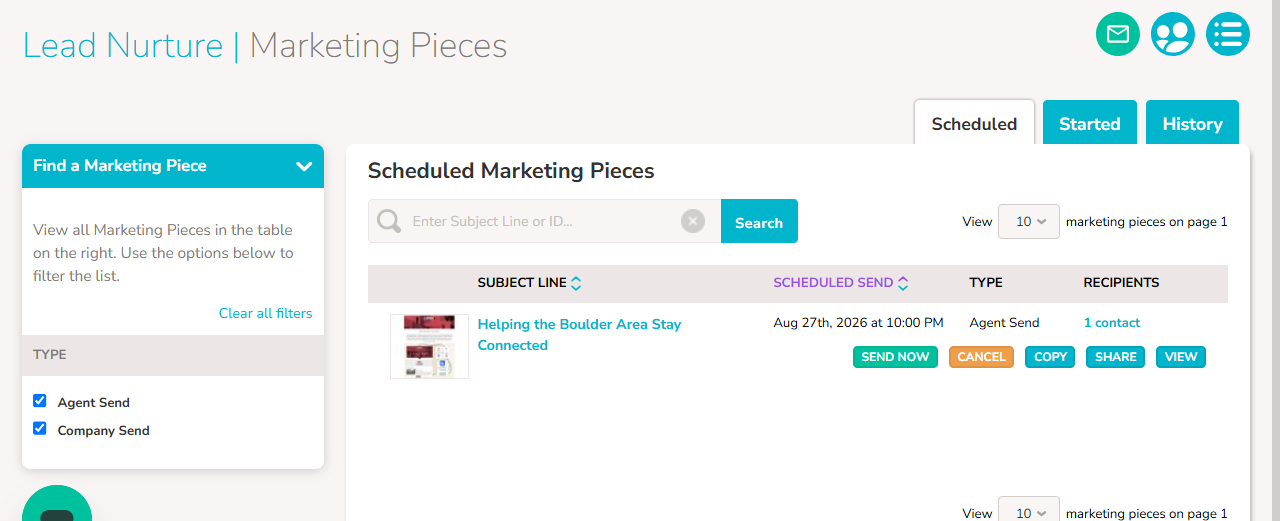
To review the recipients or to cancel/edit the send, go to your Marketing Pieces page. You will see the scheduled send while on the 'Scheduled' tab.
Click the number under Recipients to see a list of the contacts selected for the scheduled send.
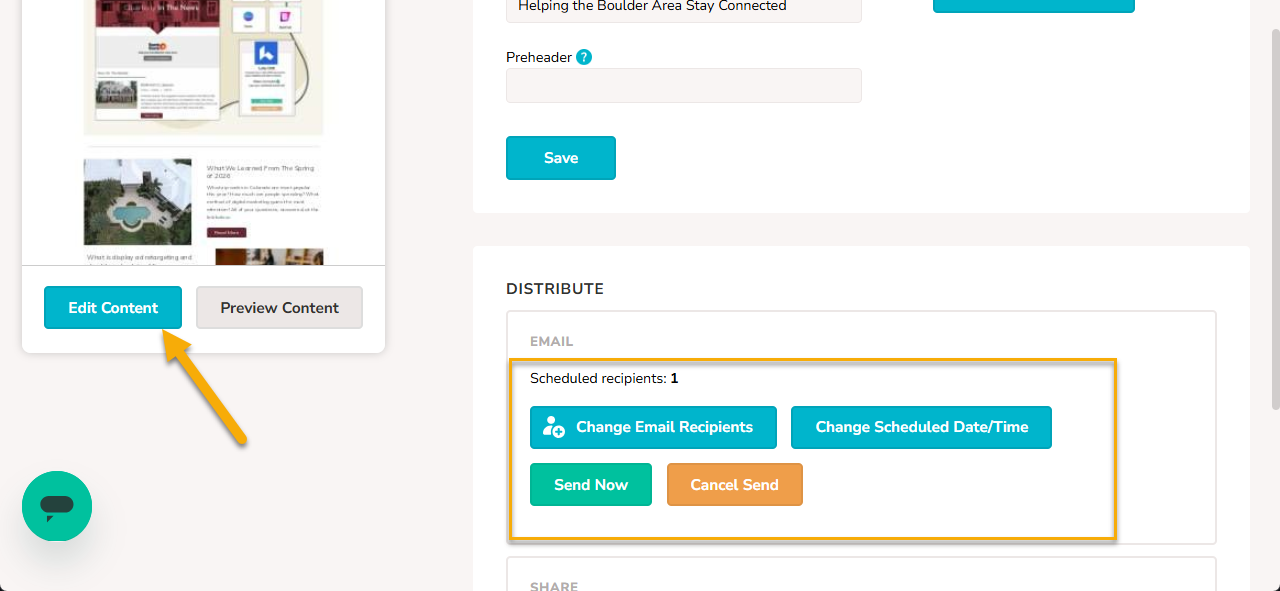
If you need to edit either the marketing piece itself or change the list of recipients, click on the Subject Line of the email. This will take you to the Marketing Piece | Edit page where you can click the Edit Content, Change Email Recipients, or Change Scheduled Date/Time buttons.
Note: If your email is set to send soon, it is recommended to cancel your scheduled send before editing to avoid sending a piece that is incomplete.