How do I export my contacts?
How to export all your contacts, or just a subset or Distribution List, as a CSV file
Written By Danny Schaffer
Exporting all Contacts from your account.
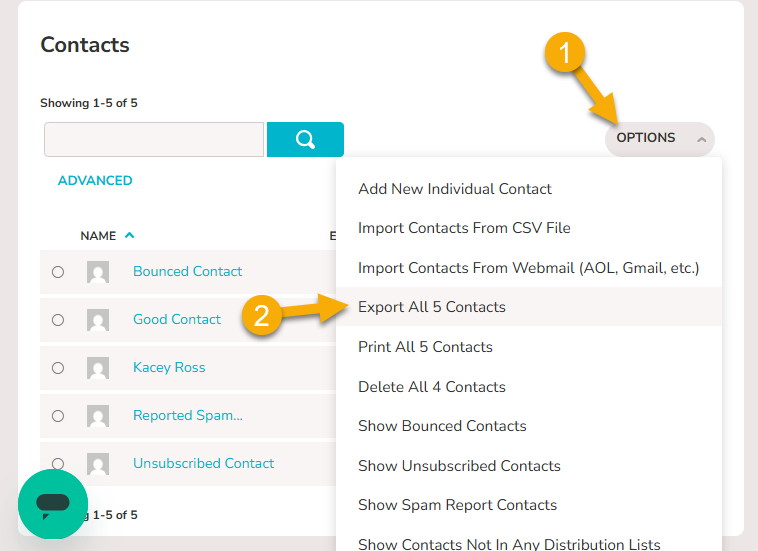
You’ll first need to head to the Contacts page
Click the Options button to expand the menu.
Click Export All XXXX Contacts
Contacts are exported into an Outlook CSV file, which is compatible with most systems.
You are only able to export contacts belonging to you directly. Contacts imported/added directly to rezora or contacts through a CRM connection.
Marketer Distribution List contacts cannot be exported.
Want to export only a subset of your main contacts?
Using the search box or Advanced filters, find those contacts that you want to export. Once your resulting list has come up, go to the Options button and click Export Current XXXX Contacts
Exporting Contacts in Distribution List
Click on the Distribution List from the right that you want to export.
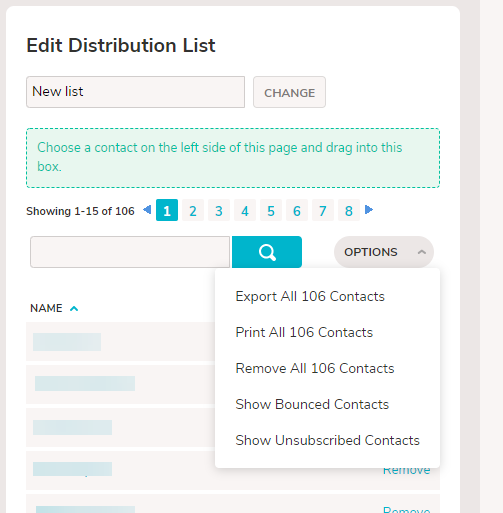
In the expanded Edit Distribution List tab on the right side of the page, click Options
Click Export All XXXX Contacts