Using Outlook Rules to find/surface rezora Verification Code emails
Written By Danny Schaffer
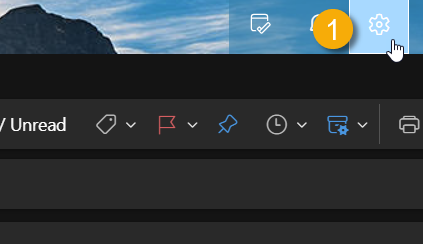
In the Desktop or Office365 browser versions of Outlook, click the Settings cog icon to open the Settings menu. Click the "Mail" category, and then the "Rules" section.
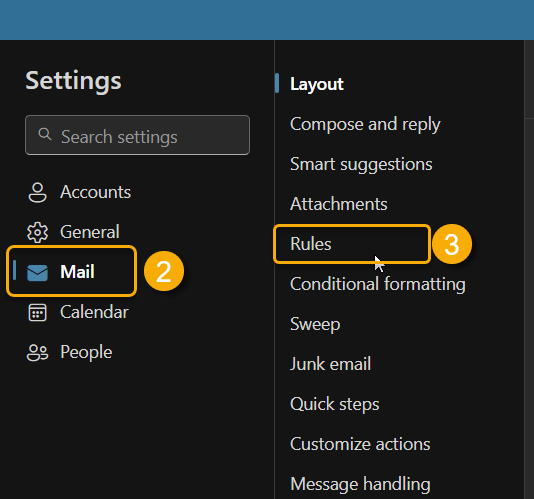
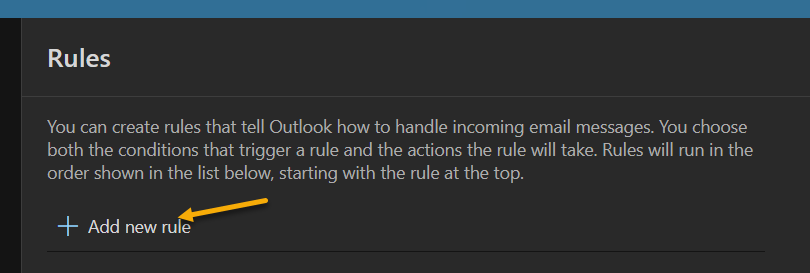
On the Rules page, click "+ Add new rule"
Build the Following Rule:
Set a Name (like "rezora Verification Codes")
Add the following Conditions:
Subject includes: "Your rezora Verification Code"
From: "info@rezora.com"
Add the Action:
Move to: Inbox
Click Save
You now have a rule in place to automatically surface any rezora Verification Code emails to the Inbox in Outlook!
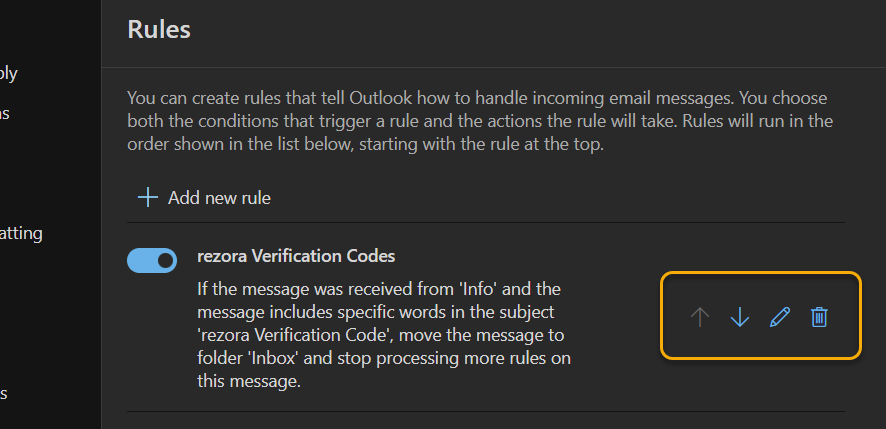
You can view, edit, or delete this Rule later by clicking the Settings cog icon, clicking the "Mail" category, and then clicking the "Rules" section to reach the Rules page and review:
Was this helpful?
Still need help? Ask the team