How do I add additional fonts for my team as an admin?
How to add Google fonts to rezora as an admin.
Written By Danny Schaffer
This step-by-step document will show you how to add Google Fonts to rezora, allowing you to use these fonts within templates and marketing pieces.
NOTE: Only some email clients will display Google Fonts. Some will just use the Default Sans Serif fall back.
To add a Google font, make sure you’re logged into a company or group admin account.
Navigate to the account menu on the upper right portion of the screen, and click "fonts" when the drop-down appears.
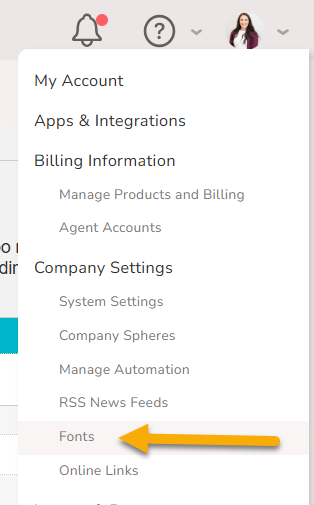
This page is where you manage your Google Fonts. You can add new fonts and remove the ones you have previously added.
Click the 'Add New Font' Button.

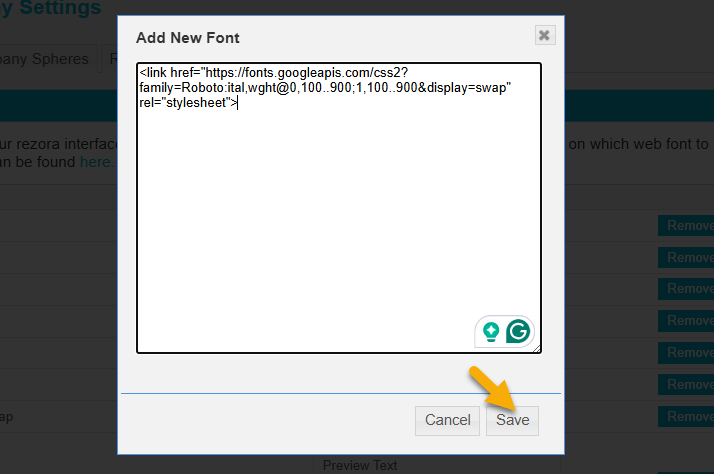
A dialog appears. This is where you will copy and paste the Google Font code.

Head to https://fonts.google.com/ and search for the font that closely resembles your brand's standard. More information on selecting which specific font to use can be found here.
Explore the available Google Fonts, locate one that you like, and click it.
On the next page, explore the styles and click Get Font if you wish to add it.
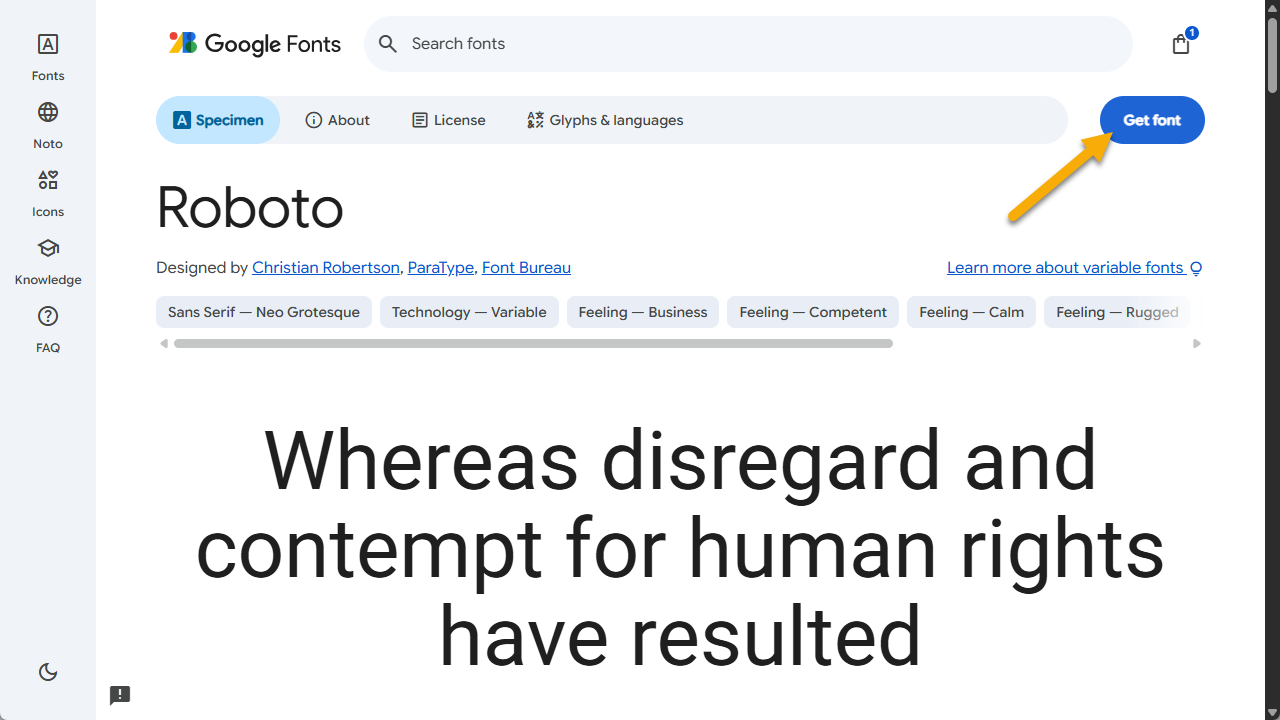
With a Font Family selected, click Get Embed Code

Copy the code provided that starts with
<link href=starting with the < all the way to the final>
Note: You do not need to copy the two <link rel= …> areas above the link href.

Head back to rezora
Paste the code into the dialog box from rezora called 'Add New Font'.
Click Save to save the font.
Note: If this process doesn’t show a confirmation, it may still have saved. Refresh the page and go back to the Font tab to see if it is there.
Congratulations! You can now use that Google Font within rezora's template builder and for the creation of marketing pieces.
Was this helpful?
Still need help? Ask the team